Admin SDK and Google+ APIs for business

Thursday, May 16, 2013 | 2:34 PM

Labels: , ,

Every day, millions of businesses, schools and government agencies rely on Google Apps to get their work done. And each of these organizations has an administrator (or a team of admins) responsible for tasks like creating new accounts, managing mobile devices, and specifying exactly which products and features their employees can use.

Today, we're announcing the Admin SDK, which enables developers to build customized administrative tools for organizations that use Google Apps. The new Admin SDK consolidates many of the existing domain APIs into a new uniform structure and introduces new functionality with the Directory API and Reports API. We’re starting to pilot Google+ Domains API.

Directory API

The new Directory API provides a simple, RESTful interface to support all basic operations required to query & manage users, groups, organizational units, Chromebooks and mobile devices.

Reports API

The new Reports API gives developers a consolidated view of reporting and auditing for domains. Developers can build applications that can monitor and search across usage statistics and activities within a domain.

Google+ Domains API

Businesses are using Google+ to help employees collaborate more easily and get things done. Developers will soon be able to auto-provision Circles, read/write posts, and more from the new APIs. Let us know if you're interested in learning more about this API when it's available.

To begin using the Admin SDK follow the instructions in the API documentation. You will need to sign in to the Google APIs Console and activate the Admin SDK. If you have any questions, join the conversation at Stack Overflow.

Note about API deprecation:
With the introduction of the Directory and Reporting APIs in the new Admin SDK the following APIs will be deprecated per their standard deprecation policy: Google Apps Profiles, Provisioning, Admin Audit, Reporting, Reporting Visualization.

Ajay Guwalani  

Ajay Guwalani is Product Manager on Google Apps Admin APIs. His current focus is to build next generation admin APIs to make enterprise developers and admins happy.


Introducing Actions in the Inbox, powered by schemas

Wednesday, May 15, 2013 | 2:32 PM

Labels:

Search engines have been using structured data for years to understand the information on web pages and provide richer search results. Today, we are introducing schemas in emails to make messages more interactive and allow developers to deliver a slice of their apps to users’ inboxes.

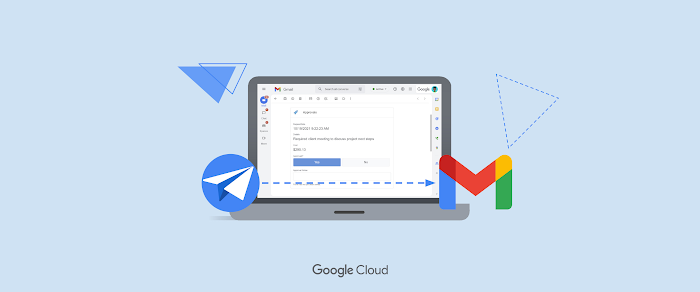
Schemas in emails can be used to represent various types of entities and actions. Email clients that understand schemas, such as Gmail, can render entities and actions defined in the messages with a consistent user interface. In the case of Gmail, this means that the emails can display quick action buttons that let users take actions directly from their inboxes, as in the following screenshot:

Using schemas to add quick action buttons to the emails you send is easy. All it takes is adding some markup to your HTML emails, together with your regular content, in one of the supported formats - Microdata and JSON-LD.

As an example, the following JSON-LD markup can be used to define a movie and the corresponding one-click action to add the movie to your queue:

<script type="application/ld+json">
{
  "@context": "schema.org",
  "@type": "Movie",
  "name": "The Internship",
  ... information about the movie ...
  "action": {
    "@type": "ConfirmAction",
    "name": "Add to queue",
    "actionHandler": {
      "@type": "HttpActionHandler",
      "url": "https://my-movies.com/add?movieId=123",
      "method": "POST",
    }
  }
}
</script>

Gmail renders the markup above with a button labelled “Add to queue” next to the email subject line. When the user clicks on the button, Gmail sends a POST request to the url specified in the action handler. Your app has to handle these requests and respond to the email client with an appropriate HTTP response code (200 for successful requests, 400 for invalid requests, etc.).

Schemas in emails currently support four different types of actions - rate/review, RSVP, one-click action and goto link - and we plan to add more types moving forward. We are collaborating with a number of partners who will launch their integrations in the coming weeks, making the messages they send more useful and interactive for Gmail users. For example, Esna is using this to inform users of missed calls and provide them with a one-click button to be called again, while Seamless is implementing the rate/review action to collect feedback about restaurants.

Other partners who are already implementing schemas in email today include both Billguard, Concur Technologies, Docusign, HelloSign, Insight.ly, Mailchimp, myERP, Netflix, OpenTable, Orangescape, Paperless Post, Spotify, SugarCRM, and Tripit.

To learn more about all supported entities and actions and to find out how to get started with schemas in email, visit http://developers.google.com/gmail.

Claudio Cherubino   profile | twitter | blog

Claudio is an engineer in the Google Drive Developer Relations team. Prior to Google, he worked as software developer, technology evangelist, community manager, consultant, technical translator and has contributed to many open-source projects. His current interests include Google APIs, new technologies and coffee.

New Apps Script features at Google I/O—again!

Tuesday, May 14, 2013 | 5:33 PM

Labels: ,

This Wednesday is the start of our annual developer conference, Google I/O, and we can’t wait to share a bunch of new features that will help developers do more with Apps Script. So let’s not wait! Check out these new features launching today:

Scripts in Google Docs

Many of you have told us that you want to be able to extend Google Docs just like Google Sheets, with custom menus, dialogs, and triggers. Starting today, you can do just that (plus custom sidebars, too). To learn more about Apps Script in Docs—including a couple of secret features that we can’t tell you about yet!—please tune into the live stream with me and Jonathan Rascher on Thursday at 3:30pm PT.


Forms Service / Scripts in Google Forms

In response to another top request, you can now use the Forms Service to programmatically create and modify Google Forms, including triggers and a better way to respond to form submissions. (We’ve created a new 5-minute quickstart to get you going.) You can also extend the Google Forms editor with the same custom menus, dialogs, and sidebars as Google Docs. If you’re at I/O, learn how to build Forms with Apps Script by joining Eric Koleda and Matthew Ziegelbaum on Wednesday at 1:55pm PT.

Drive Service

For those of you who use the DocsList Service to automate your Google Drive, a newer version is now available. Drive Service comes with new features like setting the owner of a file or folder or changing the sharing settings. We designed the new service from the ground up to make it easier to work with large numbers of files and also fixed a lot of bugs. If you’re at I/O, Arun Nagarajan and John McGowan will give you more insight into Drive integration on Thursday at 1:40pm PT.

Faster HtmlService

At Google I/O 2012, we launched HtmlService to let you build custom user interfaces with secure client-side scripting. Starting today, you can enable an experimental version of the client-side sandbox that runs significantly faster in any browser that supports ECMAScript 5 strict mode.

Improved Authorization Flow and API Console Integration

You’ve also told us that authorizing a script takes too many steps. Now, you can opt in to an experimental new authorization flow that requires fewer clicks. In addition, every script that uses the new flow automatically creates a project in the Google APIs Console. This makes it much easier to use Google APIs that aren’t built in to Apps Script. To upgrade a script to the new flow, select File > Upgrade authorization experience. If you’re at I/O, Arun Nagarajan and Christoph Schwab-Ganser will demonstrate the new flow in their session on using the YouTube Analytics API with Apps Script on Wednesday at 1:55pm PT.

As you can see, we’ve been working hard to improve Apps Script for you. We hope you enjoy the new features!

Saurabh Gupta   profile | twitter | blog

As the product manager for Google Apps Script, Saurabh is responsible for Apps Script’s overall vision and direction.

New features for the Google Drive Realtime API

Tuesday, April 30, 2013 | 10:22 AM

We recently announced the launch of the Google Drive Realtime API that lets developers create collaborative apps with the same technology that powers Google Docs, Sheets, and Slides. Today we’ve added a couple of small, but very useful, features that let developers do even more with the Realtime API: undo and redo.

The new undo and redo features provide developers a way to easily undo (or redo) local changes without worrying about the complexities that can happen in a collaborative environment. The Realtime API automatically resolves potential conflicts from overlapping edits by collaborators to undo only the local changes.

The functions themselves are very simple to implement. The following code demonstrates how straightforward adding this functionality to your app can be:

if (model.canUndo) {
  model.undo();
}

You could connect this code directly to an undo button in your app’s UI to undo the last change a local user made. No extra hard work required!

Undo and redo also come with an associated event emitted by the model class that lets you know when the features are available. You just need to attach an event listener to the model and wire up the appropriate UI changes to enable/disable undo/redo buttons. For example, you could add two buttons inside the <body> tag of your HTML document:

<button id="undoButton" disabled>Undo</button>
<button id="redoButton" disabled>Redo</button>

Then, add the following code inside the onFileLoaded callback inside your script to connect the logic to the buttons:

var model = doc.getModel();
var undoButton = document.getElementById('undoButton');
var redoButton = document.getElementById('redoButton');

undoButton.onclick = function(e) {
  model.undo();
};
redoButton.onclick = function(e) {
  model.redo();
};

Then add an event handler to enable and disable the buttons when local changes are available:

var onUndoRedoStateChanged = function(e) {
  undoButton.disabled = !e.canUndo;
  redoButton.disabled = !e.canRedo;
};
model.addEventListener(gapi.drive.realtime.EventType.UNDO_REDO_STATE_CHANGED, onUndoRedoStateChanged);

For a complete example of this implementation, see the Realtime Quickstart.

The Realtime API makes implementing undo/redo features very straightforward for most applications. For more information, see the Realtime API documentation.

Greg Knoke Google+

Greg Knoke is a technical writer in the Google Drive Developer Relations Team. Prior to joining Google, he worked as a scientist developing image and signal processing algorithms. His current interests include new technologies, content management, information architecture, cooking, music, and photography.

How Apps Script Makes Classroom Observation Quicker and Easier

Monday, April 29, 2013 | 11:26 AM

Labels: ,

Editor’s Note: Guest author Martin Hawksey is an advisor at the Jisc Centre for Educational Technology and Interoperability Standards. — Dan Lazin

When I started looking at Google Apps Script in 2010, one of the things that attracted me was the ease with which a non-developer like me could start customising Google Apps with only a few lines of code. Since then, the rich community of users and examples has continued to grow, and I’ve built event booking systems, entire student feedback solutions, and even integrated with Mozilla Open Badges.

Recently, Justin Marckel, the assistant principal at Cornatzer Elementary School in North Carolina, asked for help in modifying one of my existing Apps Script examples. Justin was recording teachers’ classroom activities using a Google Form, then manually copying and pasting data into separate spreadsheets for each teacher to review. Justin wanted to know whether there was a way for a Google Form to store the results in a master spreadsheet, then filter results to each teacher’s spreadsheet.

The basic pseudocode would be:

on form submit
  if teacher’s spreadsheet doesn’t exist, then
    create spreadsheet
    add teacher as viewer
    store id
  else
    get id
    open teacher’s spreadsheet
  copy values to teacher’s spreadsheet

Here’s a closer look at each of the steps.

Handling a form submission event

Apps Script offers three triggers specific to Google Sheets: “on open,” “on edit,” and “on form submit.” Looking at the Understanding Events documentation, we can see that a form submit trigger gives us a few options for how to pull the submitted values out of the event parameter (usually called e). We can get the data as an array via e.values, a Range object via e.range, or a JavaScript object that pairs the form questions with the respondent’s answers via e.namedValues. In this project, the e.values array is most convenient, and it will look something like this:

['2010/03/12 15:00', 'bob@example.com', 'Bob', '27', 'Susan', '25']

First, though, we have to add the form-submission trigger. The user could add it manually from the script editor’s Resources menu, but in this case, let’s manage triggers programmatically:

function setup(){
 if (ScriptApp.getScriptTriggers().length === 0) {
   ScriptApp.newTrigger('doOnFormSumbit')
       .forSpreadsheet(SpreadsheetApp.getActiveSpreadsheet())
       .onFormSubmit()
       .create();
 }
}

Creating and managing permissions on a spreadsheet

One of the big advantages Apps Script is that you’re automatically working in a Google-authenticated environment. The result is that you can programmatically create a new spreadsheet with one line of code, then add a teacher as a viewer in just one more line:

var newSS = SpreadsheetApp.create('Spreadsheet Name');
newSS.addViewer('email-address-of-teacher');

Writing data to a spreadsheet

Writing data to a sheet requires more than a one-liner just because we need to specify which cells to write to. The Range.setValues() method expects a 2D array; because we’ve already retrieved the response to the form as an array, it’s easy to throw those values into a row of cells:

var destSS = SpreadsheetApp.openById(id); // open teacher spreadsheet
var destSheet = destSS.getSheets()[0]; // grab first sheet
var insertRow = destSheet.getLastRow() + 1; // next row to enter data
destSheet.getRange(insertRow, 1, 1, e.values.length)
   .setValues([e.values]);

Simple, effective and efficient

The completed project is here. The bulk of the form-submission handling (including error logging) happens in around 50 lines of code, and I was able to complete the project within an hour. Now Justin no longer needs to copy, paste, and set up separate spreadsheets, potentially saving him hours of work. Justin recently contacted me to say:

“We have successfully used our program over the past couple of months to provide teachers with meaningful and efficient feedback. It has been successful at several other schools as well, and I got word today that our school district is looking at adopting it as a district-wide tool.”

This is just one of a growing number of examples of how Google Apps Script is directly benefitting educators by allowing custom solutions with the security, convenience, and power of Google Apps.


Martin Hawksey   profile | twitter | blog

Martin is an advisor at the Jisc Centre for Educational Technology and Interoperability Standards (CETIS), a national advisory and innovation centre that works on on educational technology and standards for the UK Higher Education and Post-16 Education sectors. Martin is an active contributor to the Apps Script community and regularly shares projects on his blog, MASHe.

More ways for apps to write to Drive

Thursday, April 4, 2013 | 12:11 PM

Today we’re introducing two new ways for apps to build even richer integrations with Drive: app data folders and custom properties.

In order to run smoothly, your app may depend on data it stores in Drive. But occasionally, users may accidentally move or delete the very file or folder your app needs to function. The app data folder is a special folder in Drive that can only be accessed by your app. The app folder’s content is hidden from the user and from other apps, making it ideal for storing configuration files, app state data, or any other files that the user should not modify.

Although users cannot see individual files in the app data folder, they are able to see how much app data your app is using and clear that data in the Manage Apps dialog.

Apps can also now add custom properties to any Drive file. The new properties collection gives your app the power to create searchable fields that are private to your app or shared across apps. For example, a classroom app could keep track of the grade for a document or a project management app could keep track of the current status of a document going through a review process.

To learn more check out the technical documentation for both app data folders and custom properties, and if you have questions don’t hesitate to post on StackOverflow.

Nicolas Garnier Google+ | Twitter

Nicolas Garnier joined Google’s Developer Relations in 2008 and lives in Zurich. He is a Developer Advocate for Google Drive and Google Apps. Nicolas is also the lead engineer for the OAuth 2.0 Playground.

Apps Script helps name Pluto's new moons

Friday, March 29, 2013 | 9:36 AM

Labels: ,

Editor’s Note: Guest author Mark Showalter is a Senior Research Scientist at the SETI Institute. — Arun Nagarajan

In 2011 and 2012, while studying the region around Pluto with the Hubble Space Telescope, I discovered the dwarf planet’s fourth and fifth known moons. Like all new astronomical objects, they started out with rather prosaic names — “S/2011 (134340) 1” and “S/2012 (134340) 1”, or, for short, P4 and P5.

I soon found my inbox stuffed with hundreds of naming suggestions. With so much interest, it didn’t seem fair to leave the job to just a handful of scientists. Instead, we decided to let the public propose and vote on the names of Pluto’s moons.

We knew that the web servers at the SETI Institute, my research home, could never handle the bandwidth required for such a task. However, the Institute has built strong relationships with Google through our extensive use of G+, and our friends there were thrilled to let us use Google services for the demanding task. I asked my husband Frank Yellin, who works on the Gmail team, for help in setting up the forms and collecting the data. Google Forms and Google Sheets were obvious choices, but with the volume of contributions and votes we were expecting, we knew we’d need programmatic help checking for duplicate nominees, filtering out inappropriate names, and tallying the votes.

Frank is a longtime Java engineer, so he tried a Java solution first. As the votes started to pour in at the rate of several per second, however, it became clear that the program could barely keep pace. Votes were coming in almost as fast as they were being downloaded and tallied. In a panic, Frank realized it was time to learn Apps Script — in fact, time to learn JavaScript altogether.

With some help from his colleagues (“How do I split a string?” “How do I make a hash table?”), he turned the project around in a few hours. Processing that had taken tens of minutes using Java took mere seconds in Apps Script, since nothing but the results ever had to leave the data center.

We were right to be prepared. By the time we closed the write-in ballot, we had received 30,000 write-in nominees and more than 450,000 votes.

We are now using the results of the poll to support our proposal for the formal names of P4 and P5. That decision is currently in the hands of the International Astronomical Union. When the final decision is made, Pluto and Charon and Nix and Hydra will be joined by two more representatives of the ancient underworld.


Dr. Mark Showalter   profile

Planetary scientist Mark Showalter is a Senior Research Scientist at the SETI Institute. His primary interest in the dynamics of planetary rings. To date, this interest has led him to discover five new moons and three new rings.